Showing posts with label iOS. Show all posts

Friday, December 19, 2014

Stinkin' Smartphone is TOO Smart

No comments:
Stinkin' smart phone is so smart. Just when I think I have my iPhone figured out, I learn something new. Here are just a few of my favorite tips and tricks when using my phone. If you have an iPhone take a minute to read a few tips for using iOS 8. Scroll to the bottom to access the full articles.

Add Audio Clips to Messages
Let’s face it: Siri isn’t entirely dependable when it comes to getting our words right in a hands-free text. Well, why have her write anything at all? To the right of the compose field in Messages you’ll find a new microphone icon — tap and hold it for a radial menu that lets you quickly record audio clips and send them with a flick of your thumb.

A Better Notification Banner
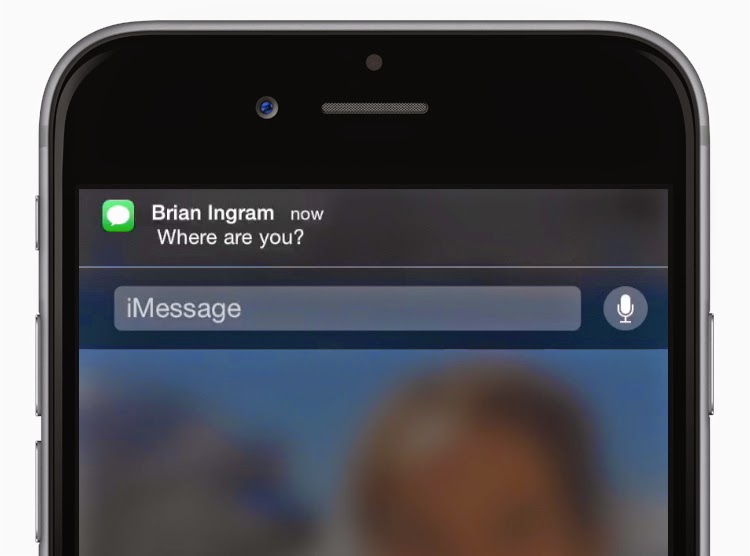
One of the most sought-after iOS features has finally arrived. When a notification banner pops up you can tap it to go to the app or flick it away as always, but pulling it down no longer opens the obtrusive Notification Center. Instead, you get a pair of options that allow you to quickly take action without leaving the app you’re in. Hooray!

Text Message Tools: DND or Leave Conversation
Raise your hand if you’ve experienced this: A friend includes you in a group message that gets out of control and your phone ends up buzzing every few seconds with responses you have no interest in reading. Apple has finally given us a way out in iOS 8. Click on the Details button and you’ll be able to turn on Do Not Disturb, which will stop your phone from lighting up every time someone in the group sends a new message. And if that’s not good enough, Apple even lets you discretely leave the conversation altogether.

Take Selfies on a Timer
I live with teenage girls so you can imagine that this was the first thing they showed me that their phone could do with iOS 8. Of course if you are going to take a selfie you need a way for your phone to stand up. Check out these cases with "kickstands." iPhone 4.4s,5 stands and iPhone 6 cases.

Edit the Voice in Maps
When using the Apple Maps app you can now edit the voice volume. Just click the microphone icon in the bottom right hand corner to get a Navigation Voice screen. Choose options for the sound level or mute entirely.

Travel Time Notifications
When Mavericks brought Maps to OS X, Apple added a neat feature called Travel Time Notifications that took distance into account when scheduling your appointments. When editing a Calendar event, toggle on Travel Time and you’ll be able to add up to two hours to the start of your event or approximate travel time based on location, so you’ll know when you need to get to your next appointment, not just when you’re about to be late for it.


To see the whole list of tips when using your iPhone you can check out both of these sites: Apple iPhone Tips and Tricks and 75 iOS 8 Tips and Tricks by MacLife.

Monday, December 15, 2014

Making the Most of Your iPhone

No comments:
I'm an avid believer that most people are not making the most of their iPhone, ME INCLUDED. If there is one thing that I've learned in the five years of having an iPhone is that things are ever changing. In those five years, I've not once had major issues with any iPhones I have owned, "knock on wood." I think the reason for that is that I practice some of these basic tasks listed below. So this Christmas if you are purchasing a new iPhone or iOS device, read through this list and make it a habit to try some of these best practices.

BEWARE: this is an extremely long post but worth the read if you are an iPhone or iPad owner!

Making the Most of Your iPhone
  1. Turn Off Your iPhone
    • Did you know turning off your iPhone resets it? It's a lot like a computer. When your computer has issues you shut it down or reboot. Use that same concept with your iOS device...turn it off if you experience issues. Another reason to turn off your iPhone is for the sake of saving your battery life. Do you really need your phone turned on 24/7? 
  2. Late Night Charging
    • Who is guilty of plugging in your phone at night and leaving it plugged in all night to charge? Overcharging your battery can actually deplete the life of the battery. It is a good practice to charge your battery and then unplug and drain the battery before charging again. If you must keep your phone on all night then turn on airplane mode to save the life of the battery.
  3. Sync/Backup Your iPhone to a Home Computer/Laptop 
    • I'm amazed how many people tell me that they have never synced/backed up their iPhone to a computer. I think this is the first thing I learned when I bought my iPhone. Most tell me that they use the Cloud. Here is what I think about the cloud...cha ching, cha ching! Apple only allows 5GB of cloud storage for FREE. After that there is charged for storage. It's just good practice to either have an alternative cloud storage or sync your phone to a computer you own. AND while you are at it, make sure you are backing up that computer to another type of storage (external hard drive or cloud). 
  4. Backup Your Phone on a Regular Basis
    • When you backup your iPhone on a regular basis it saves you the headache of losing files, pictures and contacts. It is always a good practice to backup your phone on a regular basis. Even more so when you plan on purchasing a new phone or when Apple comes out with a new iOS operating system. KNOCK ON WOOD, but with all the iOS updates I have not once lost contacts or lost data on my phone...I backup before I download any new update from Apple. 
  5. Turn the Brightness Down
    • Need to save the battery life? Consider turning down your brightness. You can set the brightness by going to Settings OR swipe up from the bottom of the phone to access the Control Center.
  6. Password Protection is a Must
    • iPhones are a hot commodity for thieves, so be sure to keep your phone locked and use a good password. Try setting a more complex password then the four-digit one. Go to Settings/Touch ID > Passcode to set a complex password. 
  7. Charge Your iPhone with an Apple Charger
    • Two things to remember when using chargers for your iPhone 1) use the Apple charger that comes with the device. Just because a charger says "compatible" doesn't mean it is the best for your device. A cheaper version may not charge your phone as well, and 2) use the charger that come with the device...using an iPad charger to charge your phone can deplete the life of the battery. Read more here. 
  8. Bluetooth and WiFi Addiction
    • We all know that when using Bluetooth or Wi-Fi to access the internet on our iPhones that it will save on our data plan. I say this on a consistent basis with my teenager who was not grandfathered in to the unlimited data plan on AT&T. However, keeping the WiFi and Bluetooth settings on drain the energy on the phone. 
  9. Extreme Weather
    • Last summer my family took a trip to the beach and guess what managed to be the hot topic of discussion? You got it..."NO iPhones on the beach." You would've thought I was the meanest mom ever. The point was this that extreme heat can cause damage to an iPhone. Not to mention that sand in an iPhone will also kill it. iPhones are very temperature sensitive so remember that when in extreme heat or cold. 
  10. Clean Your Phone
    • Let's face it! Your iPhone is disgusting. I mean really disgusting. Take time to clean your phone with a soft lint-free cloth. Read more about how to clean your phone.
  11. Running Background Apps
    • Apps run in the background? Yep!! Guilty! Double click the home button to delete apps running in the background. While you are at it, turn off the refresh of background apps. Find this under Settings > General. You can switch it off for all services or just some of them. This will help save the life of the battery. 
  12. Use Airplane Mode More
    • Airplane mode not only saves the life of your battery, but if you plug in your phone to a charger while in airplane mode it will charge two times faster. 
  13. Fetch vs. Push
    • Apps that you download will often ask if you will allow "push" notifications or not. Don't allow the push notifications unless you absolutely cannot go another second without an app updating and sending you notices. Pushing not only drains battery life, but it will also drain your cellular data plan quickly. Try turning on Fetch Manually on emails also. Settings > Mail, Contacts, and Calendars > Fetch New Data > Manually.
  14. Emergency Contact and Medical ID
    • Thanks to the "In Case of Emergency" feature of iOS 8, anybody has easy access to your emergency contact info and Medical ID without unlocking your iPhone. To set it up, tap Health app. Tap Medical ID, the icon at the lower right corner to create your medical information. Then, tap Create Medical ID to enter your information, including birthday medical condition, medication, emergency contact, blood type, height, weight and more.

Sunday, December 7, 2014

Confession #2 - I Can't Live without iOS 8

No comments:

I LOVE my iOS devices and iOS 8. I find myself wondering how I functioned before this update. Technology is ever changing and I love when there are more efficient ways to be productive. If you have not updated to iOS 8, now is a great time. Take a look at some of my favorite new features. Leave a comment on this post of your favorite feature(s).

Send an Audio Message
In Messages, touch and hold the record audio button to record. Swipe up to send the recording. To delete it instead, swipe left. I found this works best with the headphones/ microphone. 


Quickly Respond to a Notification
Slide a notification up to dismiss it, or pull it down to reveal actions you can take. For example, with an iMessage, pull down and you can reply right there.


Keep Text Notifications Quiet
Mute notifications for a conversation — handy for, say, a busy group discussion. While viewing the thread, tap Details, then tap Do Not Disturb.


Reach your Favorite People
Double-click the Home button, then tap a favorite or recent contact to call or message. You can add a person to Favorites in Phone.


Gather your Best Shots in One Album
Tap the to select pictures you love, and they’re automatically gathered in the Favorites album.


Take Selfies on a Timer
Use the shutter timer to include yourself in your photos. Frame your shot, tap the and the number of seconds, then tap the shutter button and jump into the shot.


To see the full list of the iOS 8 Tips for iPhones and iPads, click on this link or scan the QR code to the left.

Be sure to leave your favorite tip in the comments section.

Monday, September 22, 2014

Classflow + ActivInspire + Mobile Devices

No comments:
The ultimate app smashing is now available through a website called CLASSFLOW. What is Classflow you may ask? It is all-in-one teaching tool that let's the user import Promethean flipcharts and then send "cards" (what we view as slides) to students on iOS or Android devices via the free student app. The best part of Classflow is that you do not have to recreate lessons. If you are using ActivInspire and have flipcharts already created then those can be imported with Classflow.

What can teachers do with Classflow:
  • Deliver interactive multi-media lessons throughout your connected classroom via...
    • iOS, Android, Windows 8 apps OR any device with a web browser.
    • Classflow teacher app to move throughout your classroom, navigating your lesson content, sharing content with your students all from your tablet (wirelessly).
  • Receive real-time insight into student learning and progress through formative assessment. 
    • Assess student learning with a broad range of question types - creative response, text, multiple choice, equation, sort in order, etc.
    • Share real-time student progress
  • Customize multi-media lesson content
    • Organize students into different learning groups and then assign content to those groups.
  • Create and store your lessons
    • Use SMART notebooks, PDFs, Promethean ActivInspire flipcharts, Microsoft Word and PowerPoints, etc.
    • Search and import files from Google Drive and Dropbox.
Things to know about Classflow:
  • Students join a class via a class code. No email is needed to register. Student apps are free at iTunes store, Google Play store and Windows Store.
  • Content inside a lesson are not automatically sent to a student when they join the class. The teacher must send each card (slide) to the student user. 
  • Some ActivInspire features are not functional when flipcharts are imported. See the list here.
  • When using iOS devices change the Auto-Lock feature to "NEVER" so students are not logged out of the session. 
  • Classflow has great video guides on YouTube - click here for the channel. 

Monday, November 11, 2013

10 iPad Features Every iPad Owner Should Know

No comments:
iOS 7 is here so don't miss out what it can do for you in your classroom and home. Here are ten features highlighted by Steve Lai and Jonathan Wylie. Click here to read the entire article.

Here is a glimpse of the features but be sure to read the article for an explanation of each.
  1. How to Multitask and Kill Apps that Misbehave!
    • Did you know you could swipe two apps at once to kill them? Way cool!
  2. How to take Screenshots on iPad or iPhone
    • Open screenshots in apps that allow for annotation. This is a great way to describe what you are teaching or learning.
  3. How to Enable Speak Selection
    • Speak selection able users to hear pronunciations or have text read to them. Just think of the possibilities for struggling readers in your classroom.
  4. How to Lock the iPad on One App
    • This is a great feature for younger students or students who struggle staying on task. It locks the user on an app of your choice.
  5. How to Automatically Download App Updates
    • This one has its pros and cons. Pro - it updates your apps automatically. Con - a good feature of an app could be removed that you do not want to lose. 
  6. How to Search on Your iPad
    • You can set items that you wish to search under Settings/General/Spotlight Search.
  7. How to AirPlay
    • Click here for an Educator's Guide to AirPlay in the Classroom
  8. How to Make the Text in iOS 7 More Readable
    • Hooray for BOLD text. 
  9. How to Delete Individual iMessages & Texts in the Messages App
    • The "edit" button is now the "more" button for deleting individual text messages within the thread.
  10. How to use AirDrop
    • The new file transfer system is worth a try.

Thursday, October 31, 2013

Do More with Siri Commands in iOS 7

1 comment:
Siri Commands are even better with iOS 7. Bakari Chavanu wrote a great article about the new Siri commands in iOS 7. Siri was first introduced with iOS 5 back in 2010, and since that time many have jumped on the bandwagon to use Siri to dictate messages, place phone calls, search the web, etc. Now Siri has even more commands and the article highlights how to get started and some tips for getting the most out of the feature. Here are just a few of my favorites. Click here to read the entire article. 

First Siri Command
Simply press down on the Home button until you here the two-tone prompt and the new Siri screen comes p. If you don’t know what to say, you can tap on question at bottom-left of the screen to get a list of commands, or if you don’t speak for a few seconds a list of commands will appear on the screen.
The list of Siri commands you see are related to all of the default iOS apps. Tapping on a listed app gets you additional commands and questions you can use. But if you’re just getting your feet wet with Siri you might feel a little overwhelmed with the long list. I will highlight a few of the new and most practical commands you might should know about.

Voice Command Control Center
Turning off Wi-Fi and Bluetooth when you’re traveling away from home or your office can be a significant battery safer. You can manually turn off these and other Settings features using the new Control Center in iOS 7 (swipe up from the bottom of the home screen of your device). Or even better, you can tell Siri to “Turn off Wi-Fi”, or “Make screen brighter/dimmer” without having to swipe at all. Naturally you can also send a command to turn the features back on.
A few Control Center features Siri can’t handle is turn on the flashlight or change the screen orientation. It can though lower or increase the volume on your device.

Siri Settings
Now that you have some ideas about what Siri can do, you might want to open Settings > General > Siri and change the Voice Gender from the default female to male, or change to another language. Also notice where it says My Info. If you want Siri to be of more assistance to you personally, make sure the information about you in your Contacts card is up-to-date, including your all your home address and family relations. See this Siri article for setting up family connections.


Other Commands Available:
☆ Phone Call and Messages (can now ask to play your latest voicemail messages)
☆ Launch Applications (no longer have to search for apps)
☆ Play iTunes Radio Application (can ask to play radio or certain station)
☆ Twitter Searches (search specifics)
☆ Questions and Answers (now provides better answers to mathematical and factual questions)

Click here to read the entire article by Bakari Chavanu.

Thursday, September 19, 2013

iOS 7 Is Here...What to Know Before and After Downloading

1 comment:
iOS 7 is here so what should you know before and after downloading Apple's new operating system? It always surprises me how many people experience difficulties when Apple releases new operating system updates. As I look back over the releases I realize that the problem lies in forgetting some of the basic steps. This post will look at two major basic steps that many users forget to do before they jump into downloading a new operating system. Then you will find eight tips on how to maneuver through the changes after the download is complete. 

BEFORE downloading iOS 7, two basic steps to follow:

1. BACKUP. BACKUP. BACKUP.
  • You should always backup your device before making such a big change as downloading a new operating system. That way if any contacts, calendar appointments, notes, etc. are compromised during the download you can retrieve them by restoring your phone to the last backup. That's what I call "Apple 101." Before you go to the Apple Genius bar - backup, get a new phone - backup, download a new iOS operating system - backup, or for good measure just backup every couple of weeks in case your phone crashes.
    • iCloud Backup vs. Computer Backup
      • I am not a big fan of backing up to iCloud because Apple only gives you a certain amount of space for free. Each backup requires additional space which will eventually deplete. Plus, I found it difficult to find my backup when I used iCloud.
      • I find it much easier to backup my devices to the computer. Be warned...make sure your computer is also being backed up via an external hard drive or some type of cloud storage. 
  • In all my years of owning a iOS device, I have yet to lose my contacts, photos, notes, calendar appointments, etc. I say that boldly because I have a rule of thumb and that is that I back up my devices at least once a month. Should something disappear, I can go back and restore my device to the latest backup.
2. UPDATE YOUR APPS
  • With the release of iOS 7, app developers are quickly pushing out their updated apps. Be sure to go to the App Store and run the updates. Anytime a new operating system is released users need to update their apps so they are compatible with the new system.
  • Warning about Updating Apps: Be sure to read the fine print before pressing the update button. Developers will list what is included in the download and if there could be complications. Sometimes it is better to wait depending on what is listed in the update.

AFTER downloading iOS 7, a few tips on changes:

1.  Notification Center 
  • New tabs at the top: Today/All/Missed
  • Today reveals the weather and your calendar for the day.
  • All reveals all notifications.
  • Missed reveals any notifications that were not seen.
2.  Spotlight Search
  • The spotlight search feature has moved. No longer does swiping to the right reveal the spotlight, but now swipe down (but not swiping from the top of the screen or you will get the notification center) to get to the spotlight search feature.
3.  Shutting Down Apps
  • Normally, if users want to close out apps, they double tap the home button and pick the apps they want to close. In iOS 7, after the double tap, apps now appear as a series of screens users scroll left to right. To close apps, simply swipe up.
4.  Deleting Emails 
  • In the past, users could swipe left or right on an email to delete. Now users have different options per swipe. Left swipe gives the trash or move option. Right swipe opens the email.
5.  Bigger Folders
  • Folders are no longer limited to a certain number of apps. Each one will now hold as many apps as you choose. New pages are created within the folder to accommodate the apps added.
6.  Blocking Numbers
  • There's now an option to block callers. You can do this with settings/phone/block and add new, contacts, or numbers found in the Recents menu. Click the info button on the right and scroll down to Block. The feature will block any phone calls, messages or FaceTime chats from that contact.
7.  Camera
  • There are more options right in front of you, like High Dynamic Range and Panorama. 
  • There's also a new Square option and native filters; Instagram fans will love this. 
  • Photos are organized differently, too. There's the standard albums, but when you tap the Photos icon at the bottom left, you can view images as "collections" sorted by date.
  • Albums now contain a video and panorama album.
8.  Control Center Features
  • From the lock screen, swipe upward the bar located at the bottom of your device. When you swipe you now have access to these features.
    • The top section has five features: Airplane Mode, Wifi, Bluetooth, Do Not Disturb,Orientation Lock
    • The middle section features:  Music and Brightness control
    • The bottom section features: Flashlight (new feature), Clock/Timer, Calculator, Camera

Additional resources for this article:

Monday, March 18, 2013

10 Reasons to Use Edmodo in the Classroom

No comments:
I found this article by Mohamed El-Ashiry on Edudemic on "Reasons to use Edmodo in the classroom." I've read many articles on Edmodo but this particular article is simplistic and straight to the point. With flipped classrooms now trending, Edmodo is a great LMS tool to use...plus it's FREE! Read Mohamed's reasons below:
  1. It is now very easy to share a worksheet or handout with my students on Edmodo. If I prepare a worksheet on Pages or have a worksheet in my Dropbox, all I need to do is ‘open in another app’ and select Edmodo. I prefer to share worksheets and handouts as a PDF, because that preserves the formatting of the document and it’s very easy for students to download an app that allows them to annotate PDFs (like Notability or TypeOnPDF).
  2. Students can easily download a document from Edmodo, use it in another app (like a PDF annotation app) and then upload it again onto Edmodo to submit it as an ‘assignment’. This solves the whole ‘work-flow’ problem that many teachers faced upon the introduction of iPads into the classroom. Worksheets, handouts, task sheets, graphic organizers, anything you want the students to work on, just upload it into your library, add it to a folder that you share with the students or attach it to a post, then they access it and open it in another app. Once they have finished, they need to upload it into their ‘backpacks’ and then submit it as an attachment to an ‘assignment’ that you posted.
  3. Edmodo’s ‘assignment’ feature allows me to post an assignment with a due date and a task sheet, see who submitted it and when, mark it using a PDF annotation tool, grade/assess it and give feedback all in one neat place. It really is hassle-free! While the desktop version of Edmodo allows better assignment-marking features than the iPad app, I can still mark simple assignments on-the-go from my iPad.
  4. Edmodo’s ‘quiz’ feature allows me to create really quick and simple quizzes to use in class. Creating the quiz is really simple, and I can use multiple-choice, fill-in-the-blanks, matching, or even short answer questions. It also shows you some really cool statistics about the students’ answers.
  5. Edmodo’s ‘poll’ feature allows me create quick survey polls in class and can be a very valuable formative assessment tool. It has been very useful in my Humanities class to help me decide what students may need to focus on more for the coming lessons, or what sort of format would they prefer to submit their assignment as, among many more polls.
  6. Edmodo’s ‘note’ feature has been a great help in creating exit slips for the students. Right before the lesson ends, the students are asked to write ‘one thing I learned today is…’ or ‘one thing that surprised me today was…’ or ‘one thing I’d like to find out more about is…’. After posting their exit slips, they can all see what the others have posted and maybe comment on each others’ posts and respond.
  7. Edmodo’s ‘members’ feature allows me to manage my students in each class/group. This has been very handy in reminding a student of their username in case they forgot it while logging in again, or resetting their password if they can’t remember it, or even changing a student’s member-status to ‘read-only’ if they have been posting too much irrelevant content and abusing the posting feature. I can also use this feature to award ‘badges’ to my students, which is a great incentive for many of them.
  8. Edmodo’s ‘small groups’ feature makes group-work a lot easier to manage and assess. In my drama classroom, students are arranged in small groups or ‘theatre companies’, and a lot of their brainstorming is done on Edmodo, or even simply documenting group-work in a virtual group-work log.
  9. Edmodo’s ‘folders’ feature makes it very easy to organize documents in a folder and share that folder with my classes. Standard templates like reflection help-sheets or rubrics can be placed in these folders so students can have access to them anytime.
  10. Edmodo has made it much easier to teach ‘digital citizenship’ skills in a safer and more-controlled environment. Having a strong social-networking aspect to it, Edmodo allows the teacher to model appropriate online behavior and etiquette, and gives the students the opportunity to practice those skills in a teacher-controlled environment.
Follow Mohamed El-Ashiry's blog by clicking here. Edmodo has apps for both iOS and Android devices. Click here to download either app:  http://www.edmodo.com/mobile/

Tuesday, March 5, 2013

Apps Just For Coaches

No comments:
Since coaching is where I got my start, I thought I would share four apps that can be used for coaching instruction. At first glance, my thought was "where were these when I was teaching a left-handed slapper to bunt." These tools allow coaches to video tape an athlete, slow-speed review, annotate on video and highlight techniques that are either excellent or need improvement.Coaching is about immediate feedback and what better way to offer this than by video. It makes coaching much easier when a student can actually see themselves on film.

Here are the app recommendations:

Coach My Video Mobile 
Cost: FREE (for a limited time only)
Device: iOS only; compatible with iPhone, iPod, iPad


Benefits of Using this App:
☆ Real-time Video-Instruction: IMMEDIATE, ON-THE-SPOT COACHING
☆ Frame-Capture: get the PERFECT PICTURE
☆ Instantly REVIEW and ANALYZE videos in Slow-motion:
☆ FORWARD / REVERSE / PAUSE / & 3-Second INSTANT-REPLAY ↺
☆ FRAME-BY-FRAME control
☆ ACCESS VIDEOS & IMAGES directly from your CAMERA ROLL
☆ CAPTURE the perfect action-shot: Save FULL-RESOLUTION IMAGES from your HD videos!
☆ DRAW on Videos & Photos using LINES, CIRCLES, RECTANGLES & FREEHAND.
☆ Calculate the ANGLE between lines
☆ ZOOM option
☆ ADVANCED VIDEO-EMAILING OPTIONS: Email HD-video directly from your device!

Sample Video:

Coach My Video Private
Cost: $1.99
Device: iOS only; compatible with iPhone, iPod, iPad


Benefits of Using this App:  
☆ Frame-by-frame & slow-motion video analysis
☆ Draw/mark-up your video in our telestrator
☆ Coach / Chalk-up on-line REFERENCE VIDEOS *without* leaving the App
☆ Email+ video-sharing, up to 720p HD
☆ Frame-Capture in Full Resolution from HD videos
☆ AirPlay Connectivity for the iPhone 5 and iPad: control your video on the large-screen from the palm of your hand.
☆ Customize the iPad's home page with your own branding- contact us for more information
☆ Instant-access to Camera Roll and Photo Albums (no waiting for video-import)
☆ iPad: STOPWATCH: easily time splits, etc. on a video
☆ iPad: side-side comparison with synch-playback
☆ iPad: side-side comparison with REFERENCE VIDEOS

Coach's Eye
Cost:$4.99
Devices:  iOS and Android


Benefits of Using this App: 
☆ VIDEO CAPTURE AND IMPORT
       ★ Record HD video.
       ★ Import video from your device’s Camera Roll, email, or apps like Dropbox.
       ★ Instant import of videos shared from other Coach's Eye users.

☆ INSTANT VIDEO ANALYSIS
       ★ Slow-motion video review is easy using our flywheel for precise video scrubbing.
       ★ Zoom and pan videos during analysis to see just the details that matter.
       ★ Draw on videos using lines, arrows, circles, squares, and freehand tools.
       ★ Create videos that include audio commentary, annotations, and slow-motion.

☆ SIMPLE VIDEO SHARING
       ★ Email/Text Message
       ★ Facebook/Twitter
       ★ YouTube
       ★ Device Camera Roll
       ★ Other Apps (Dropbox, GoodReader, Evernote, and more).
       ★ Use Coach's Eye on the big screen for optimal video analysis in a group setting.
       ★ Free online account gives you web access to videos you have shared or liked.

Ubersense Coach
Cost:  FREE
Device: iOS only


Benefits of Using this App:
☆ Record HD video and playback frame-by-frame.
☆ Instant slow motion analysis, zoom and advanced drawing tools for any sport.
☆ Compare videos side-by-side or overlay using slow-motion controls.
☆ Create video reviews with audio commentary and annotations.
☆ Import videos from Camera Roll, email, and apps like Dropbox.
☆ Share instantly with athletes, coaches and friends directly from your phone or tablet

Getting Started with Ubersense (video)

Friday, February 22, 2013

Educational Apps Collection

1 comment:
Did you know that there is a section in the iTunes App Store called Education Collections? The Education Collections section features 27 sub-sections including reading, math, physics, chemistry, music, writing, geography, astronomy and earth science, foreign languages, test prep, and lots more.

Apps for Teachers
Also included in the Education Collection is an Apps for Teachers section. The section has apps for classroom tasks, curricula support, instructional tools, personal organization, and reference applications. Free and paid apps are listed.

Special Education
A great new additional is the Special Education section. The section highlights apps for communication, emotional development, seeing and hearing, language development, literacy and learning, diagnostics and reference, organization, and life skills.

Other resources for educational apps and uses of iPads in the classroom:
☆ Tony Vincent's Learning in Hand Blog
☆ Richard Byrne's iPad Apps for School
☆ iPads in Schools Livebinder
☆ TCEA iPad App Resources
☆ The Mobile Native Blog

Sunday, February 10, 2013

Build Your Own Event App with Yapp

1 comment:
Build your own event app? Absolutely. Why am I just learning about Yapp? Today's post from Edudemic caught my eye with the words "event app." Each year my colleagues and I put together a virtual conference for our district. Yapp offers us a way to create an app for our conference. I could not be more ecstatic. Take a look at what Yapp can offer for you.

Special Features of Yapp:
☆ Invitation – Get all the key information in the palm of your hand
☆ Schedule – See up-to-the minute information so you know where to be when
☆ People – Get bios on people, sponsors, and key contacts
☆ News Feed – Connect with others and receive breaking news
☆ Photo sharing – Take and share photos. See official photos in the Gallery
☆ Offline browsing – See your content even if you are out of network range

NOTE: At this time you can only login with Yapp or create a Yapp account by logging into your Facebook account. Yapp has stated that they are working on another login solution but until then you can only use a Facebook account to login.

 Screenshots of Yapp:


 Yapp Tour Video:

Thursday, January 31, 2013

Introducing the Socrative Garden

No comments:
Socrative now has a learning community filled with ideas, videos, user guide, and samples from classrooms. If you are not familiar with Socrative, let me introduce you to a simple student response system that empowers teachers to engage their classrooms through a series of educational exercises and games via smartphones, laptops, and tablets. Mobile apps are also available for iOS and Android devices. Visit the Socrative Garden by clicking here.

Socrative User Guide:


Socrative How-To Create an Activity/Quiz Video

How To - Create Quiz/Activity from Socrative Inc. on Vimeo.

Wednesday, December 5, 2012

Prezi for the iPhone

No comments:

        Introducing Prezi for the iPhone


Prezi in your pocket
Use your iPhone or iPod touch to show and view prezis on the go so you always have your ideas.

Free with any Prezi license.


Prezi for the iPad

The iPad is perfect for zooming around your prezis. Edit and show your prezis on the go—online or off.

Free with any Prezi license.


Thursday, November 29, 2012

Screen Sharing with ScreenLeap

1 comment:
If you have students in your classroom who have brought their own technology to use or if you are working in a 1:1 or even 5:1 environment, then ScreenLeap is a tool you should be using. This is a wonderful free tool that can make learning more interactive for everyone.

ScreenLeap allows you to share your screen instantly to any device with a browser, including laptops, netbooks, computers, smart phones, iPads, Android tablets, and more. There is no software to download or install and no registration required. There is also no limit to the number of devices with which you can share. Your device that is shared must be capable of using Java, but it is not required on the other devices. After clicking to share your screen, processing for about 20 seconds will occur and then you will be given a unique URL to give to those who need to connect with you.

To Share your Screen:


To View a Screen Share:
All information was provide by TCEA TechNotes.